
On this page
There are several different ways to see more activities.
Method one: Using the predefined selections:
- In the bottom right corner of the overview, click on the button that says ‘monthly’ and a new drop-down box will appear
- In this drop-down box, click on the timeframe you would like to see activities for. You will have these options:
- Quarterly
- Monthly
- Weekly
- Daily
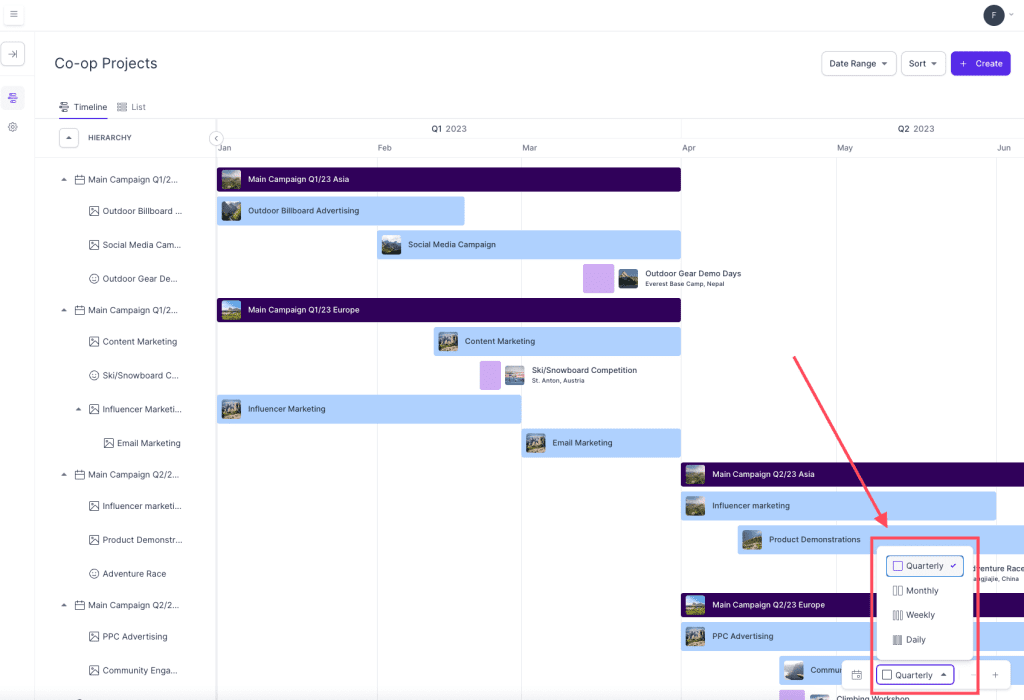
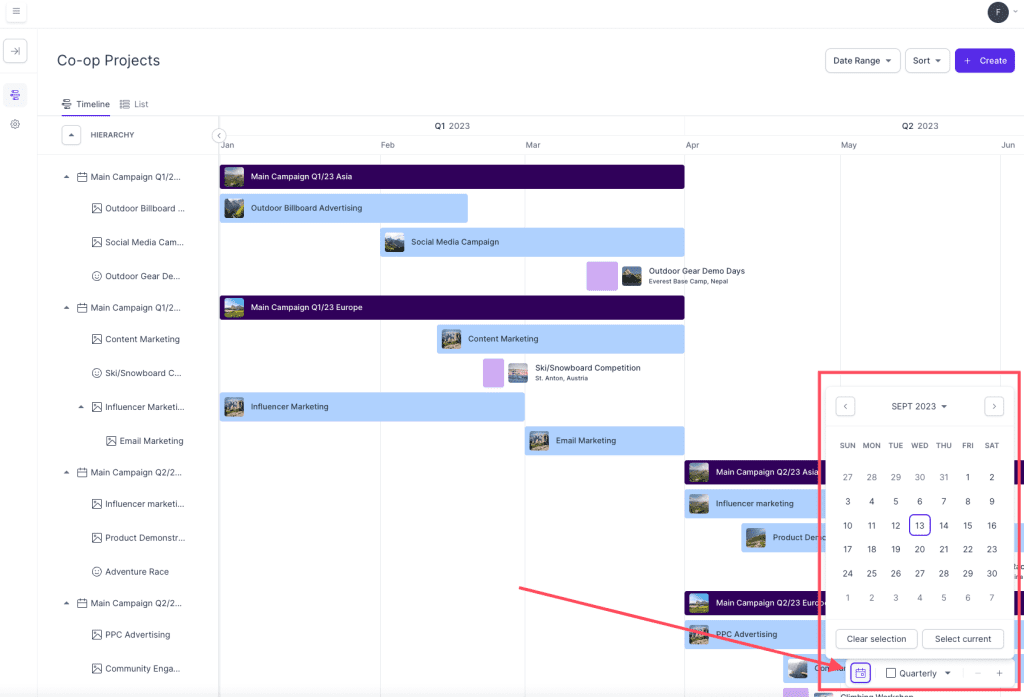
Method two: Using the calendar selection tool:
- In the bottom right corner of the overview, click on the calendar symbol, and a window with dates will appear
- Select a date that you would like to jump to
- You should now see activities at the selected date
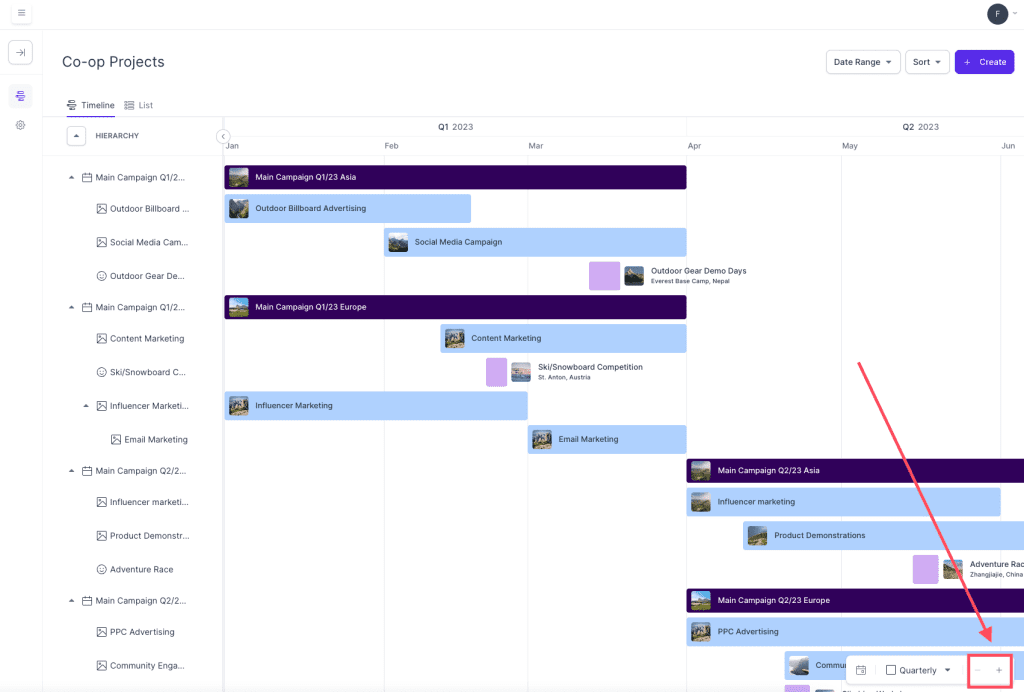
Method three: Zooming in or out:
- In the bottom right corner of the overview, click on the minus (-) symbol to zoom out and view more campaigns.
- If you would like to zoom in again, click on the plus (+) symbol
Method four: Click and drag
Click and hold the cursor inside the timeline and drag to where you want to go. GIF below shows how to do this (expect some loading time):
Method five: Using the scroll bar in the browser
- Your browser should allow you to scroll further to the right or left, or up and down
- Use the scroll bar at the bottom or on the right hand side of your browser to scroll to the part of the overview that you would like to see
- If you do not see a scrollbar, try holding shift on your keyboard and use the scrolling wheel on your computer mouse to perform a horizontal scroll on the overview
GIF below shows how to do this (expect some loading time):
Comments
0 comments
Please sign in to leave a comment.