
Cards are all the modules containing data/statistics on your dashboard.
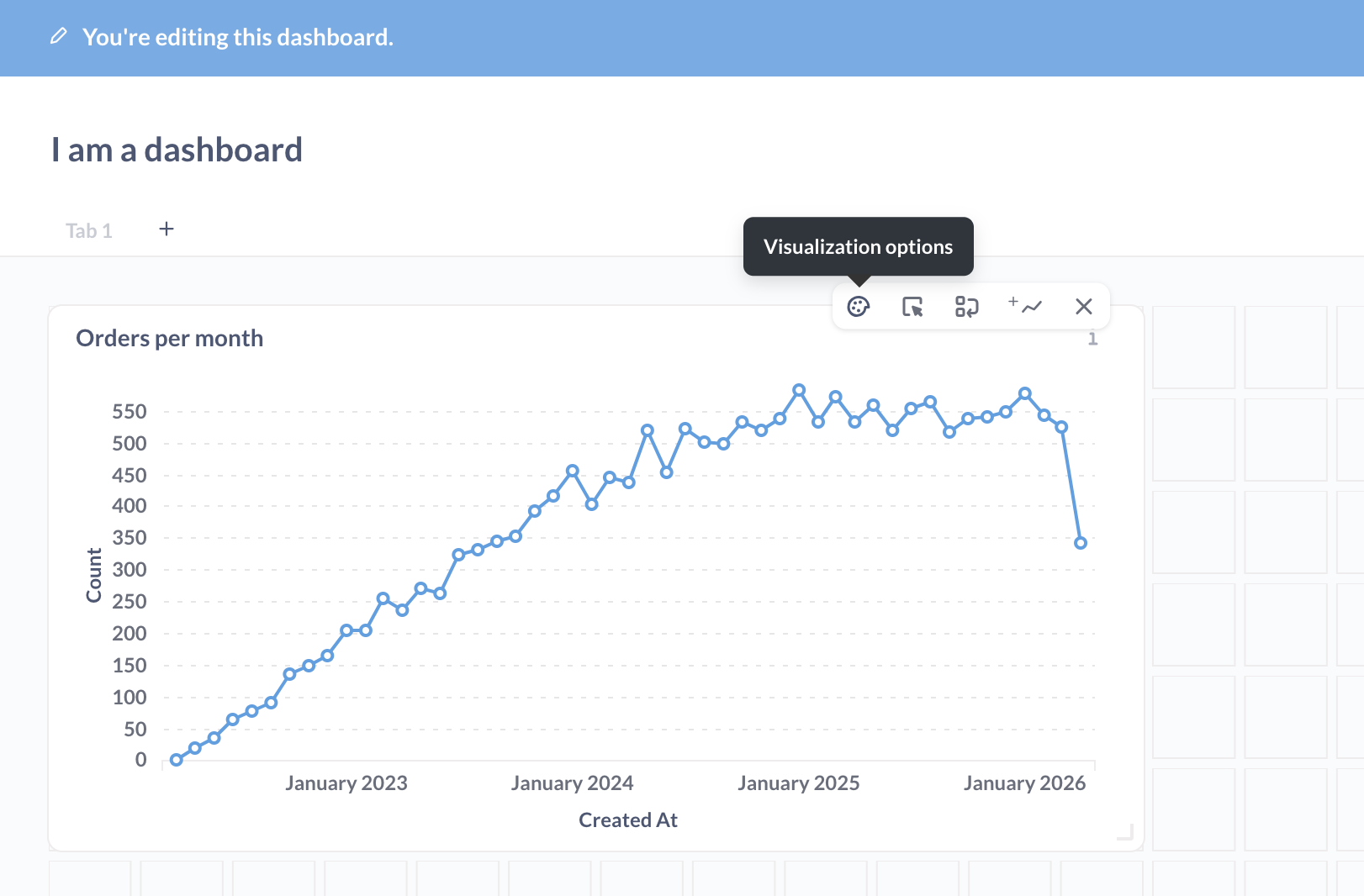
You can change a card’s visualisation settings (to add a goal line, for example). Changing a card’s visualisation settings will only affect how the question appears on that dashboard card; these changes won’t affect the original question’s visualisation settings.
- Click on the pencil icon to enter dashboard edit mode, hover over the question you want to edit, and click on the palette icon to edit a card’s visualisation's settings.
Hiding a card when it doesn’t return results
One neat thing to call out: if you have a question card that rarely returns results, but you still want to include that card in your dashboard because you want to know when the question does return results, you can tell Prove Enterprise to hide the card unless it returns at least one row of data.
When in dashboard edit mode, click on the Visualisation settings for the card.
- If the card displays a table, the option is in the Columns tab.
- If the card displays a chart, the option is in the Display tab.
Toggle the option Hide this card if there are no results. When you turn on this option, the query will still run in the background, but the dashboard won’t display the card. If the query returns results, the dashboard will display the card, moving the other cards around to make room for it according to how you’ve arranged the cards in dashboard edit mode.
Resetting a card’s visualisation settings
If you want to revert a dashboard card to its original visualisation settings (i.e., the settings on the question when it was first saved to your dashboard):
- Go to your dashboard and click the pencil icon to go into edit mode.
- Hover over the card (question) that you want to edit.
- Click the palette icon to bring up the visualisation settings for that card.
- Click Reset to defaults.
- Click Done to save the card’s visualisation settings.
- Click Save to save the dashboard.
Comments
0 comments
Please sign in to leave a comment.