
Another neat thing you can do is add heading and text cards to your dashboards. Text cards allow you to include descriptions, explanations, notes, or even images and GIFs to your dashboards. You can also use text cards to create separations between sections of charts in your dashboards, or include links to other dashboards, questions, or websites.
To add a new text card, create a new dashboard (or edit an existing one) and click on the text card button, T, in the top-right:
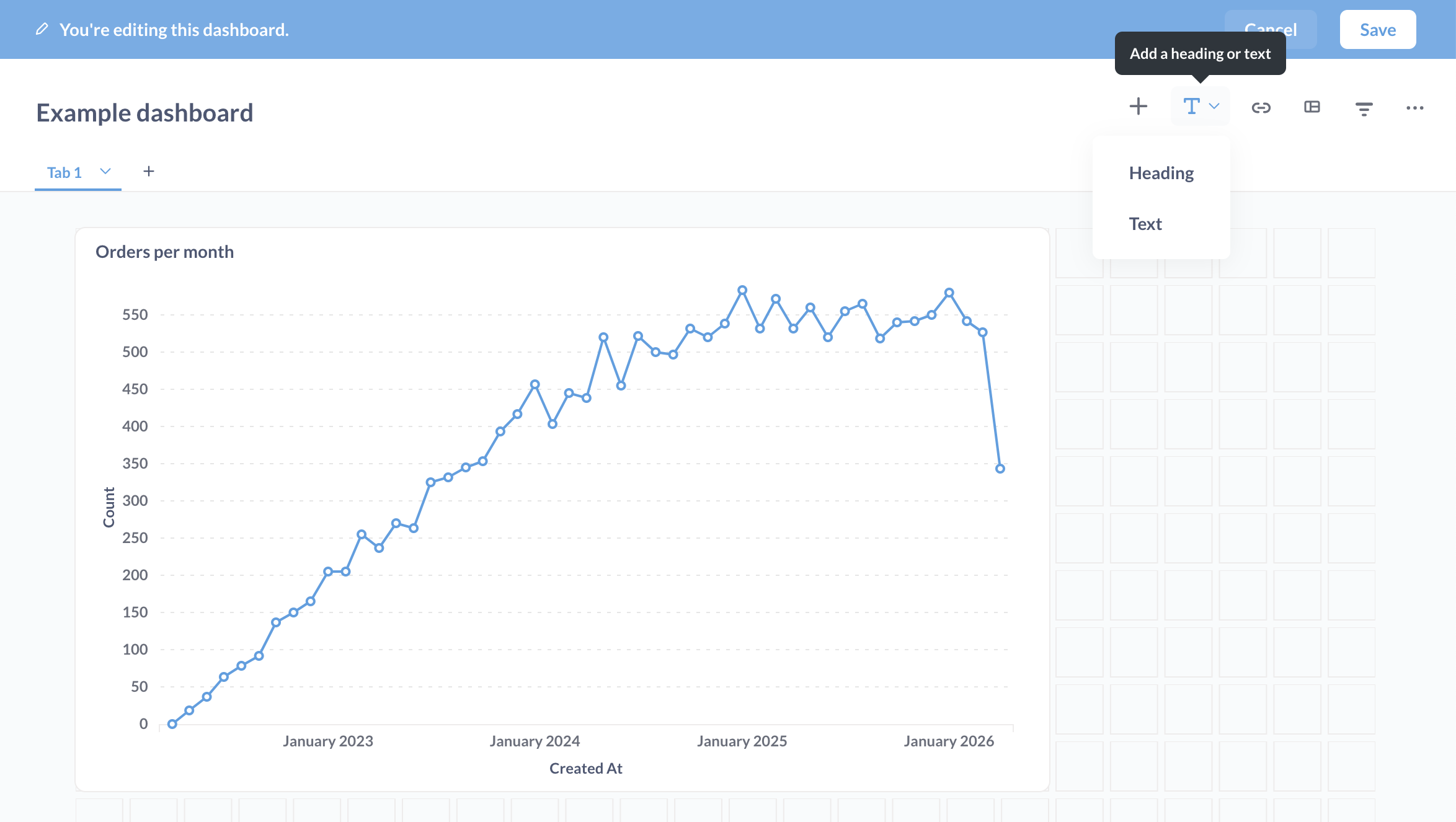
You have two options:
- Heading: a preformatted heading text card that spans the width of the dashboard.
- Text: a customizable text card that will render Markdown-formatted text.
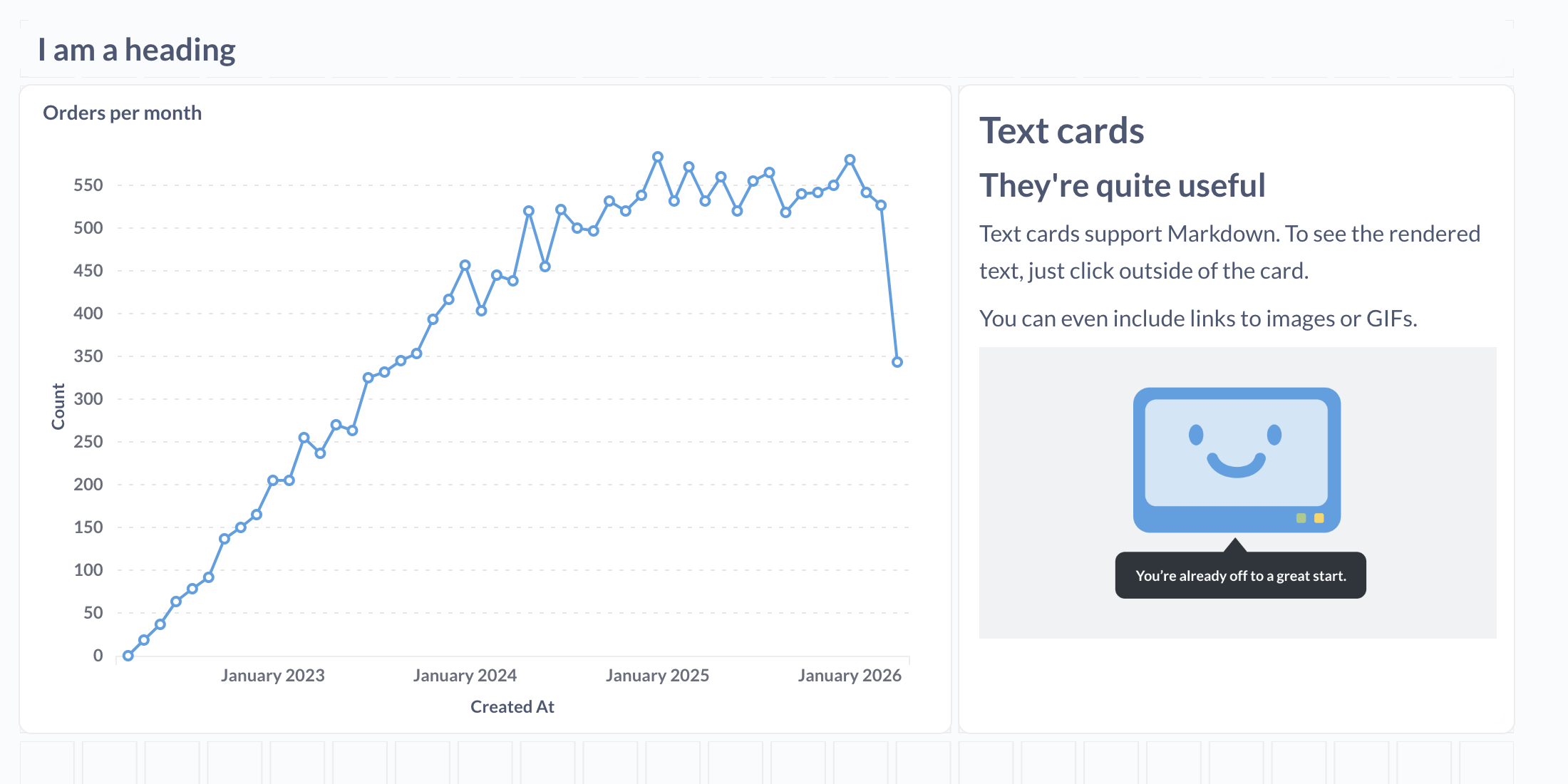
Each text card has two modes: writing and previewing. When you click to focus on the card, the card will enter editing mode. When you click away from the card, Metabase will render the card to show you what it will look like on the live dashboard.
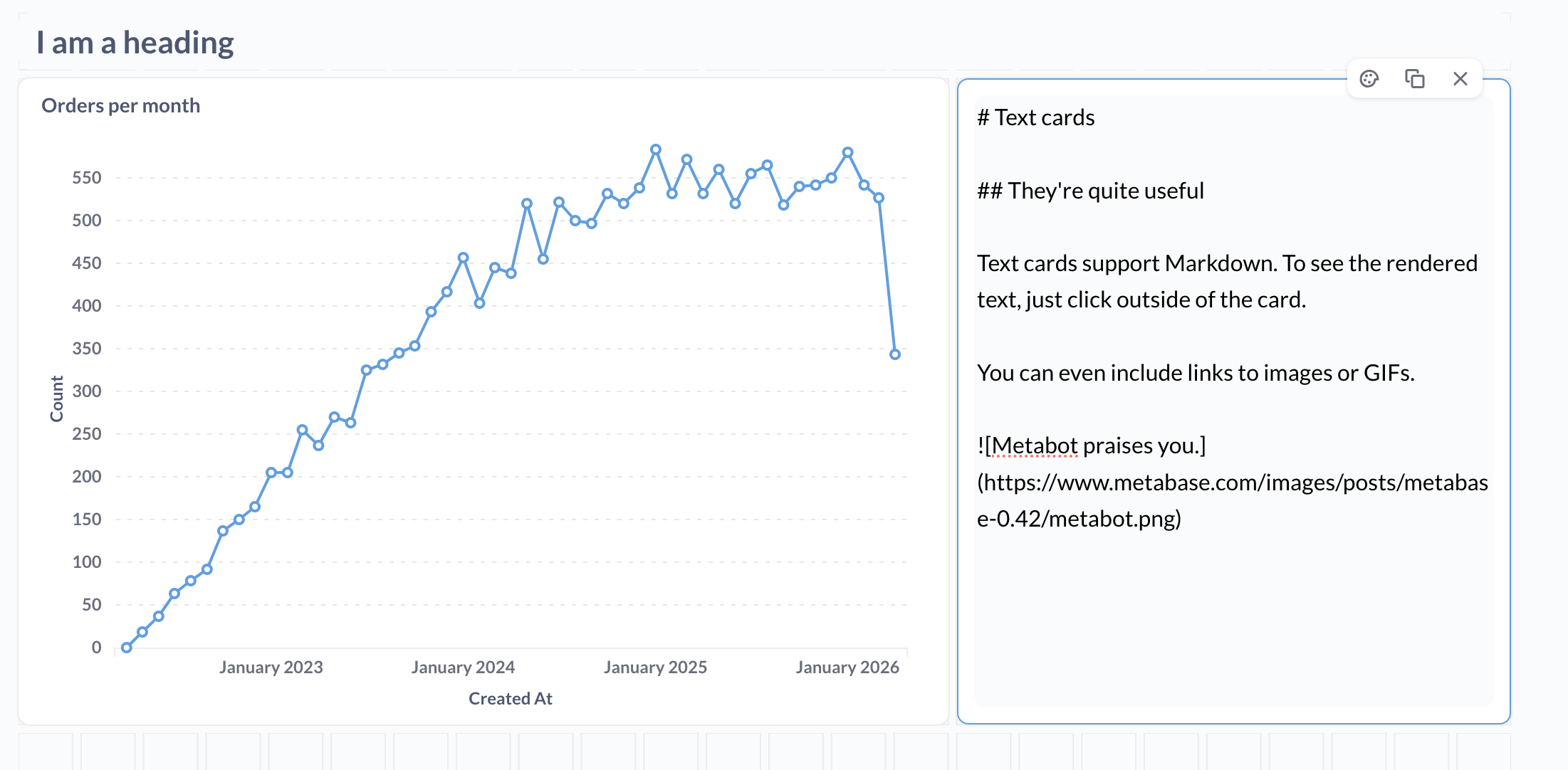
You can use Markdown to format the text in your text card, create inline tables or code snippets, or even embed linked images (easy on the GIFs, friends). To preview the rendered card, just click away from the card.
Including variables in text cards
You can include a variable in a text card, then wire that variable up to a dashboard filter. All you need to do to create a variable is to wrap a word in double braces, {{ and }} (the variable can’t contain any spaces). For example, you could add a text card with the following text:
And connect that variable to a dashboard filter widget that filters for states. If someone selected WI in the state filter, the text in the markdown card would read: WI orders.
You can also make text options by wrapping the text in double brackets, [[ and ]]:
In this case, the phrase from {{state}} would only display if someone selected a value (or values) in the filter widget.
Comments
0 comments
Please sign in to leave a comment.