
To edit dashboard cards and move them around, click the pencil icon in the top right of a dashboard to enter the dashboard’s editing interface.
Editing cards
Once you’re in edit mode, you’ll see a grid appear. You can move and resize the cards in the dashboard to your liking and they’ll snap to the grid.
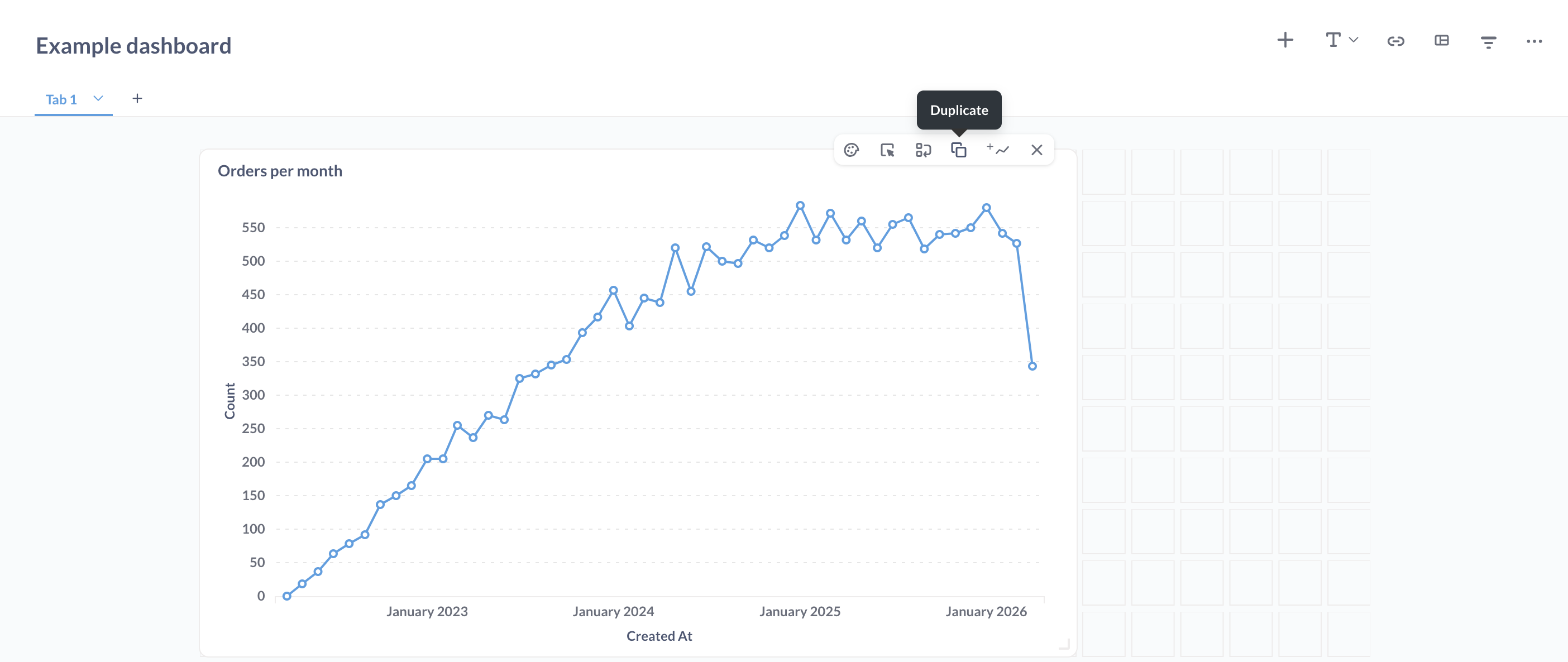
- Duplicate a card: hover over the card and click the Duplicate icon.
- Move a card to a new tab: hover over the card, click the move icon, and select that tab you want to move the card to.
- Move a card within a tab: click and drag the card. Other cards will move out of the way.
- Resize a card: click the handle at the bottom right corner of the card, and drag to resize. Nearby cards will move away to accommodate the new size.
- Remove a card: hover over the card and click the X icon in the top right corner.
- Replace a card: hover over the card and click the Replace icon in the top right corner. Search for a question to swap in for the existing question on that card. You can only replace a question with another question, not another type of card (like a text card).
Prove Enterprise will automatically update a question’s display to make sure your data looks great at any size you choose.
Dashboard sections
To speed up card arrangement, you can add sections to your dashboards.

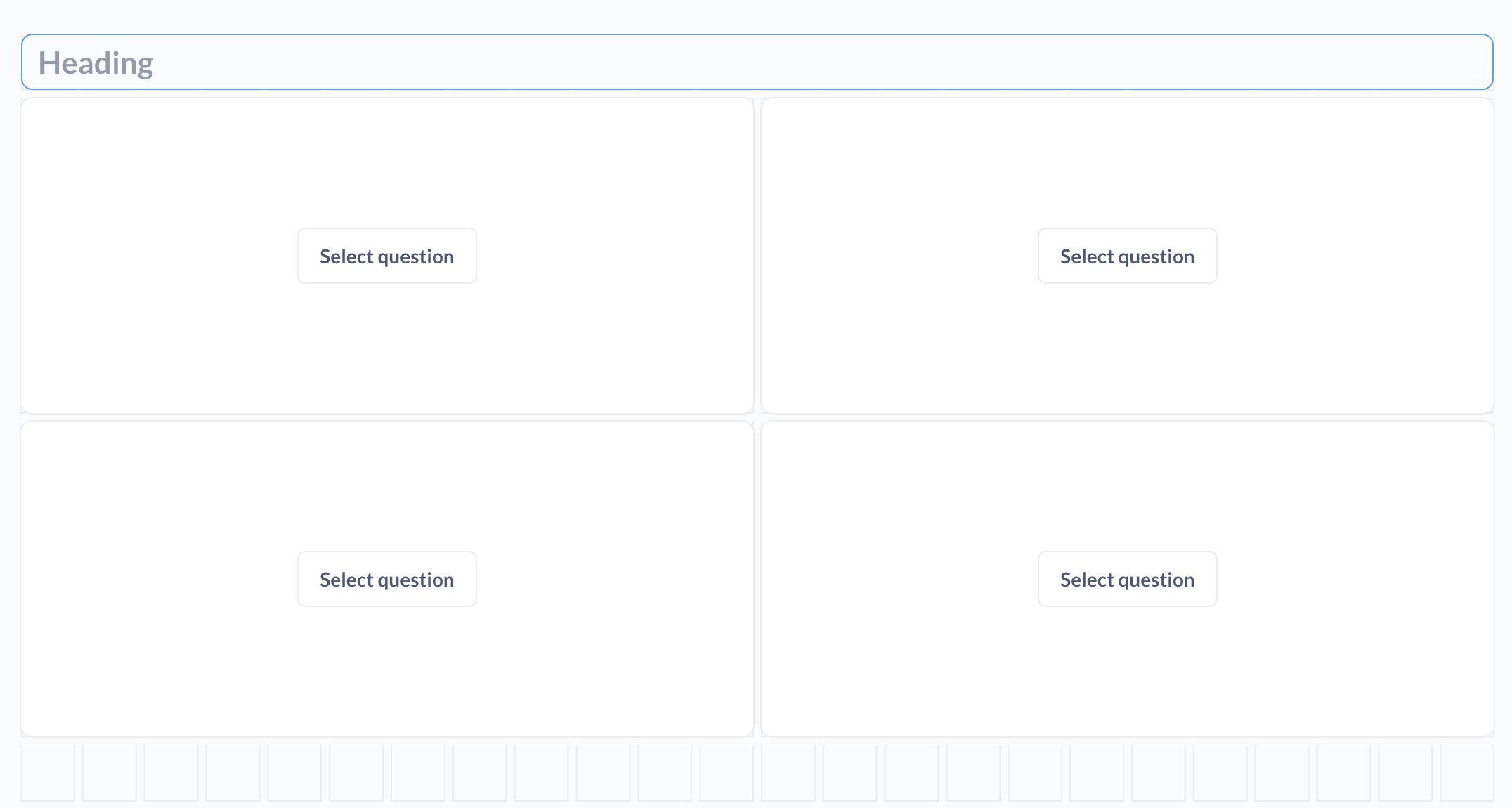
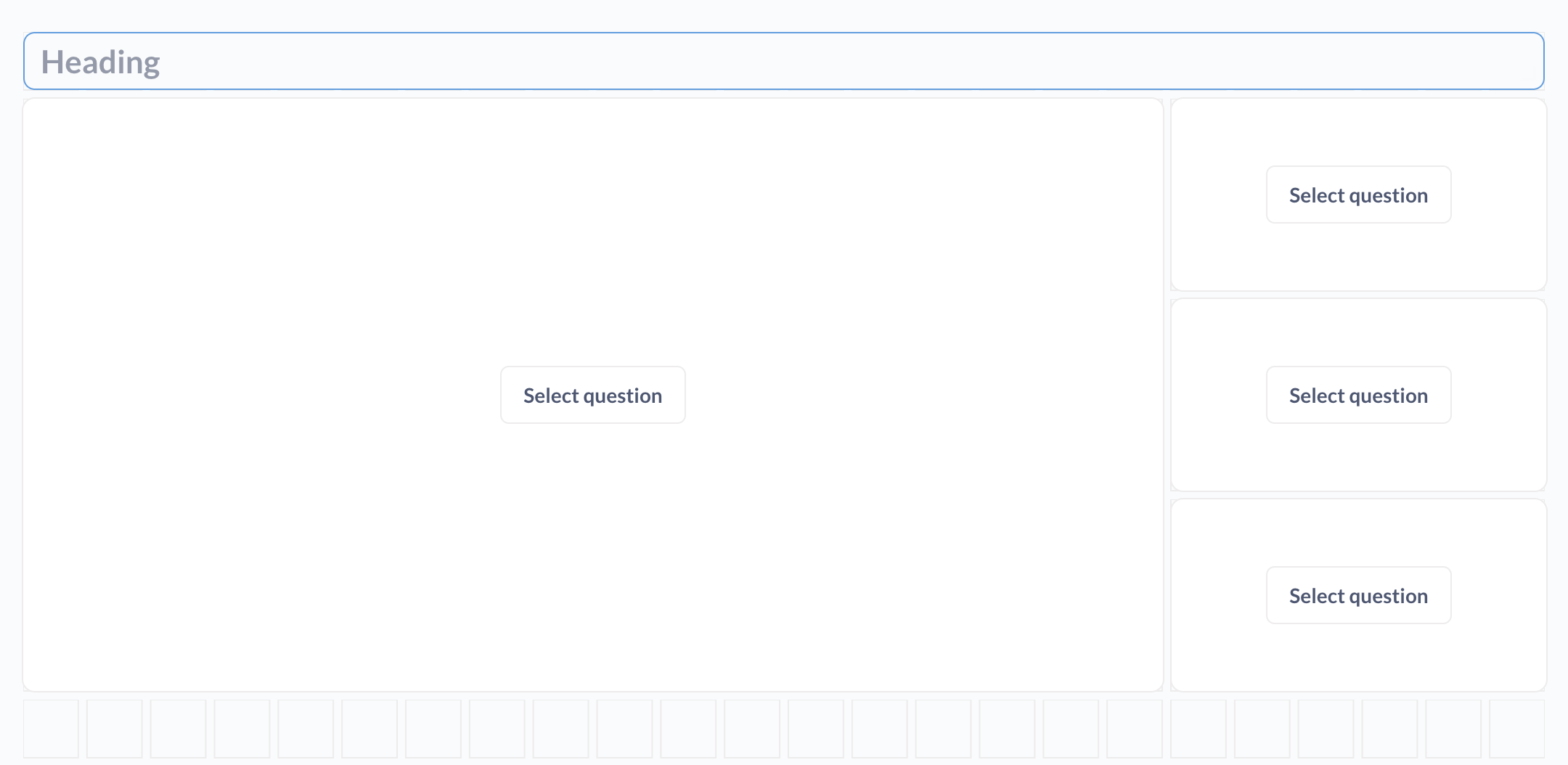
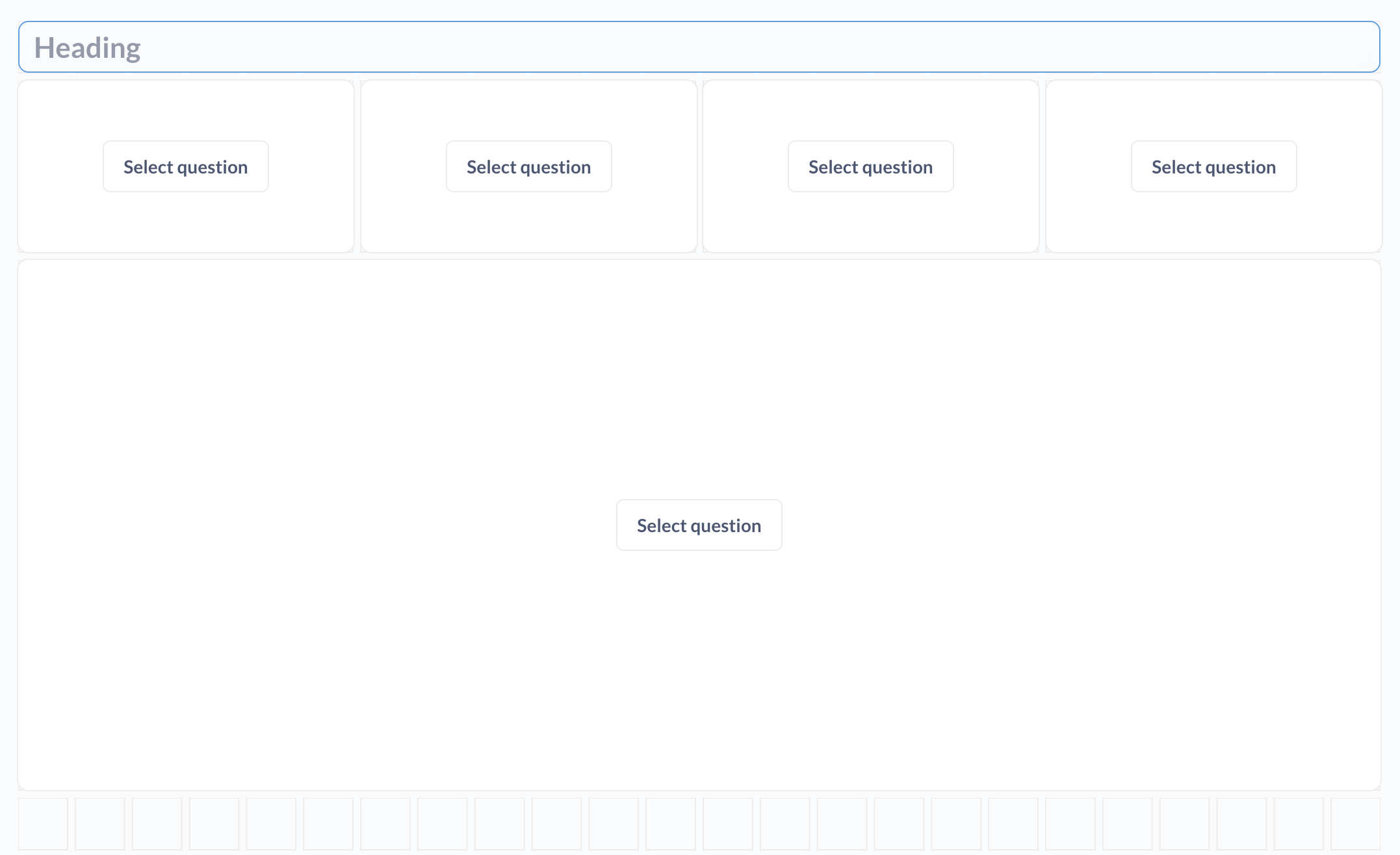
Sections are templates with headings and pre-arranged cards. Once you add a section to a dashboard, you can pick questions for each card, and make any other changes you like. You can only pick questions for cards, not another type of card (like a text card).
If you forget to set a question for a card, the dashboard will simply render a blank card.
Sections include:
KPI Grid
Large chart with KPIs to the right
KPIs with large chart below
Comments
0 comments
Please sign in to leave a comment.